How to use Peneira
Using Peneira
To use Peneira you need to have an account, whether you participate by contributing data to a project or you want to create a project for others to help collect data.
If you participate in a project (for example, one created by your educational institution or someone in your research group), you must ask the creator of that project to grant you access to it. That is: you do not need to request an account from the home screen. If, on the other hand, what you want is to create a new collaborative project and you do not have an account, you need to request one from us via the home page.
If you have an active account on Peneira, simply enter your credentials: your email address (or username) and password.
If you cannot remember your password, select Remember password and enter your email address or username. Accounts with an email address use the regular email recovery process. For managed educational accounts without email, the responsible teacher is notified and can create a new password from the project's participant management page.
Installing Peneira
Since Peneira is a progressive web application (PWA), it allows us to use it in two ways: without installing it, as a web page, by accessing directly https://peneira.cesga.es, or by installing the application from the browser, so that next time we can access it like any other application on our phone/computer.
We have more advantages if we install Peneira instead of using it from our browser as a web page:
- We can use it without an Internet connection.
- The application's information space will be larger, because we won't have the navigation bar at the top.
Installing Peneira on an Android phone/tablet
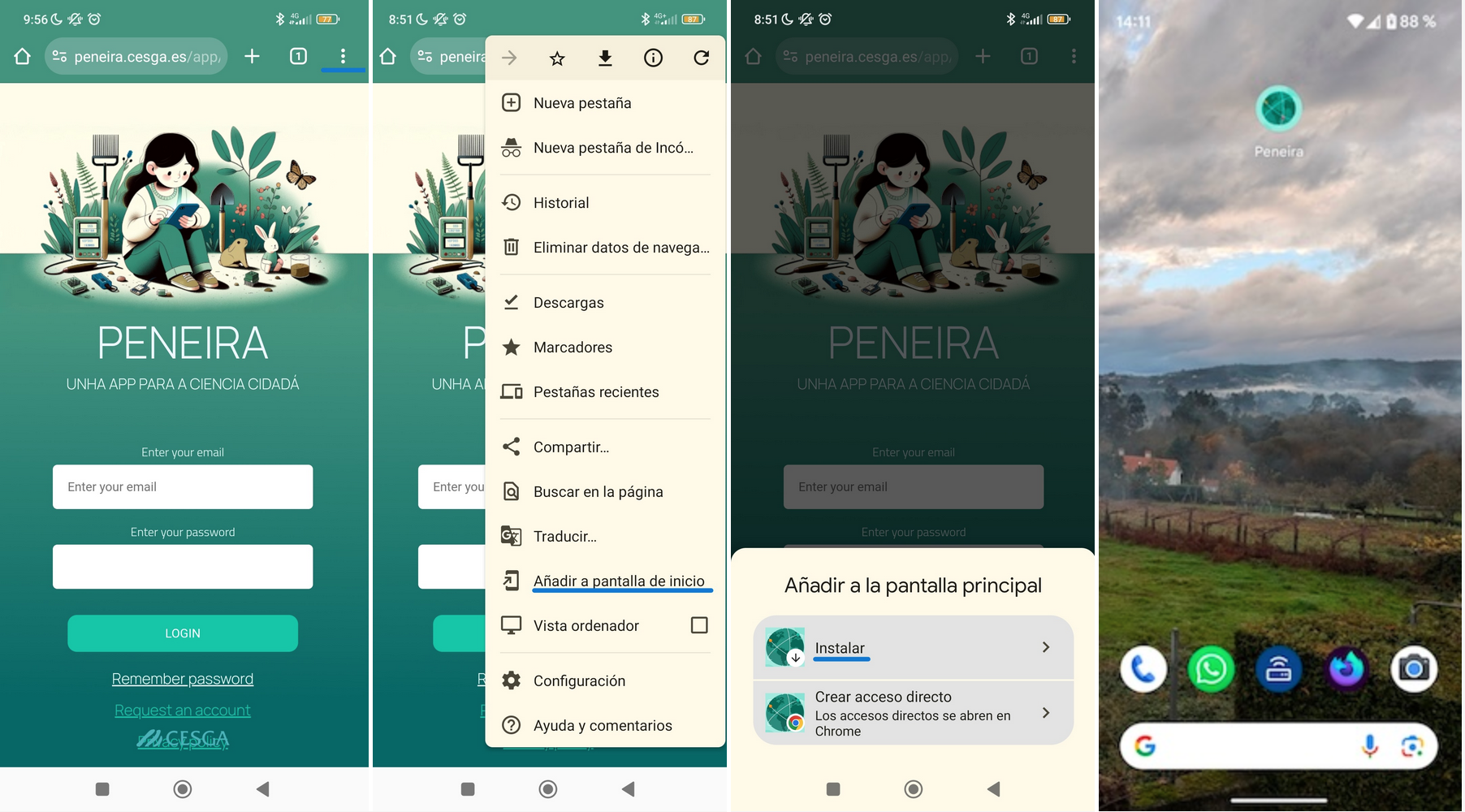
If we want to use Peneira as an application, we must follow these steps (for Android phones):
Chrome browser: From the web browser we access the Peneira URL: https://peneira.cesga.es,
Once on the URL, we must select the 3-dot menu in the upper right corner and press the "add to home screen" option.
We choose the "Install" option and we would have Peneira on the desktop.
Firefox browser: to install Peneira, there are a few additional steps after accessing the Peneira URL:
- In the three-dot menu in the upper left corner of the screen, select the submenu: Save
- In the Save menu, select "Add application to home screen" (the text may vary depending on the application/Android version)
- Firefox asks you to drag the Peneira icon to place it on the home screen.
Account profiles
In Peneira there are 3 types of user accounts:
Creator/administrator
You can create and manage projects, proposing categories, data to collect, and participation in the project, assigning users to your project. These users who participate in your project can be of the two following types: Collaborators (co-managers in your project) or participants (data collectors).
Collaborator
This account must be created by the project's Creator/administrator. It allows you to have permissions similar to those of the project creator within the project you participate in. This can be useful for managing complex projects among several people. This user profile only has administration permissions in the project you were added to, but not in any other project. Therefore, if you want to create your own projects later, you must request CESGA to change your permissions to creator/administrator.
Student/Participant
You can only create observations in projects you were invited to. This profile allows, in addition to being able to collect observations in the project, the ability to comment on observations made by other participants, as well as download the data collected in the project.
Account request
How to request an account?
To participate in projects hosted on Peneira you need to have an account.
If you want to participate in a project managed by your teacher or participate in a scientific project proposed by the person responsible for a specific research group, you must contact this person so they can create your account on Peneira and allow your participation in the project.
If, on the other hand, what you want to do is start using Peneira to generate your own collaborative projects with the tool, you are in the right place... keep reading!
Peneira is currently available free of charge for teachers and researchers in Galicia, from the Higher Council for Scientific Research, or for those who participate in projects with CESGA. To do so, you must first request it, as indicated on the request page itself https://peneira.cesga.es
If you want to use Peneira outside of these uses, get in touch with us and tell us about your idea and your context. Sometimes exceptions are allowed!
Request form
You must fill out the request by completing the following fields:
- Name
- Email address
- Institution you belong to
- Brief justification about the use you intend to give the tool.
Once submitted, you must wait for the request to be accepted, which normally does not exceed 24 hours on business days.